
Unlimited Activity
See what your Mac is doing.
Coming soon for Mac.
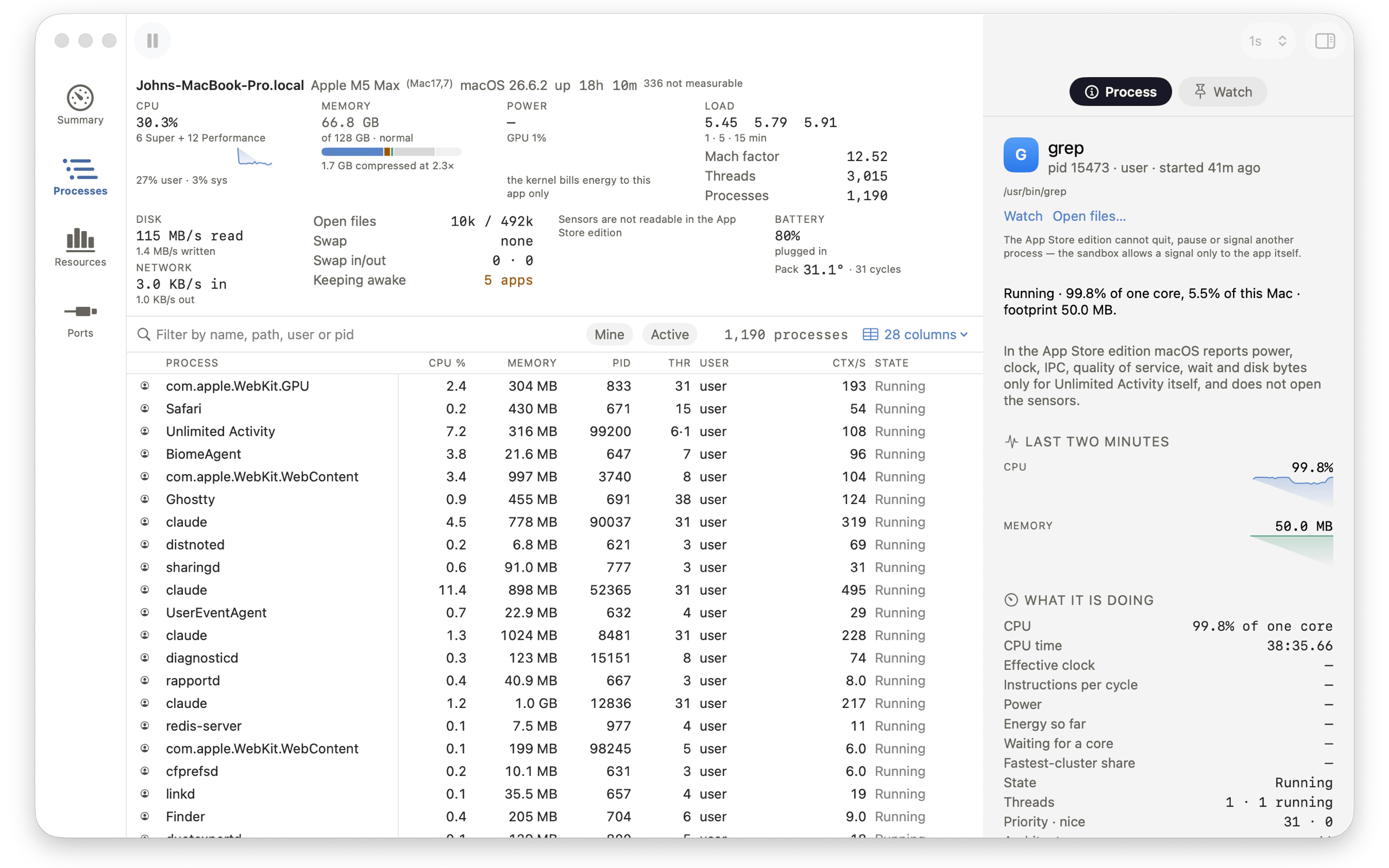
Activity shows you every process on your Mac, what the whole machine is doing, and who it is talking to. It has the detail of the command-line tools and the manners of a Mac app: it reads once a second, and when you make the window wider it shows you more instead of squeezing what it has.
Every process
- What it is — its name, path, owner and pid, and the chain of parents that started it.
- What it is using — processor, memory, threads, page faults, context switches, system calls.
- How it was started — the full command line, argument by argument, its working directory and its environment.
- Sort by any column. Filter by name, path, user or pid. Pin a process and it stays at the top while everything else keeps re-sorting.
- Widen the window and more columns appear, every one full size.
The whole Mac
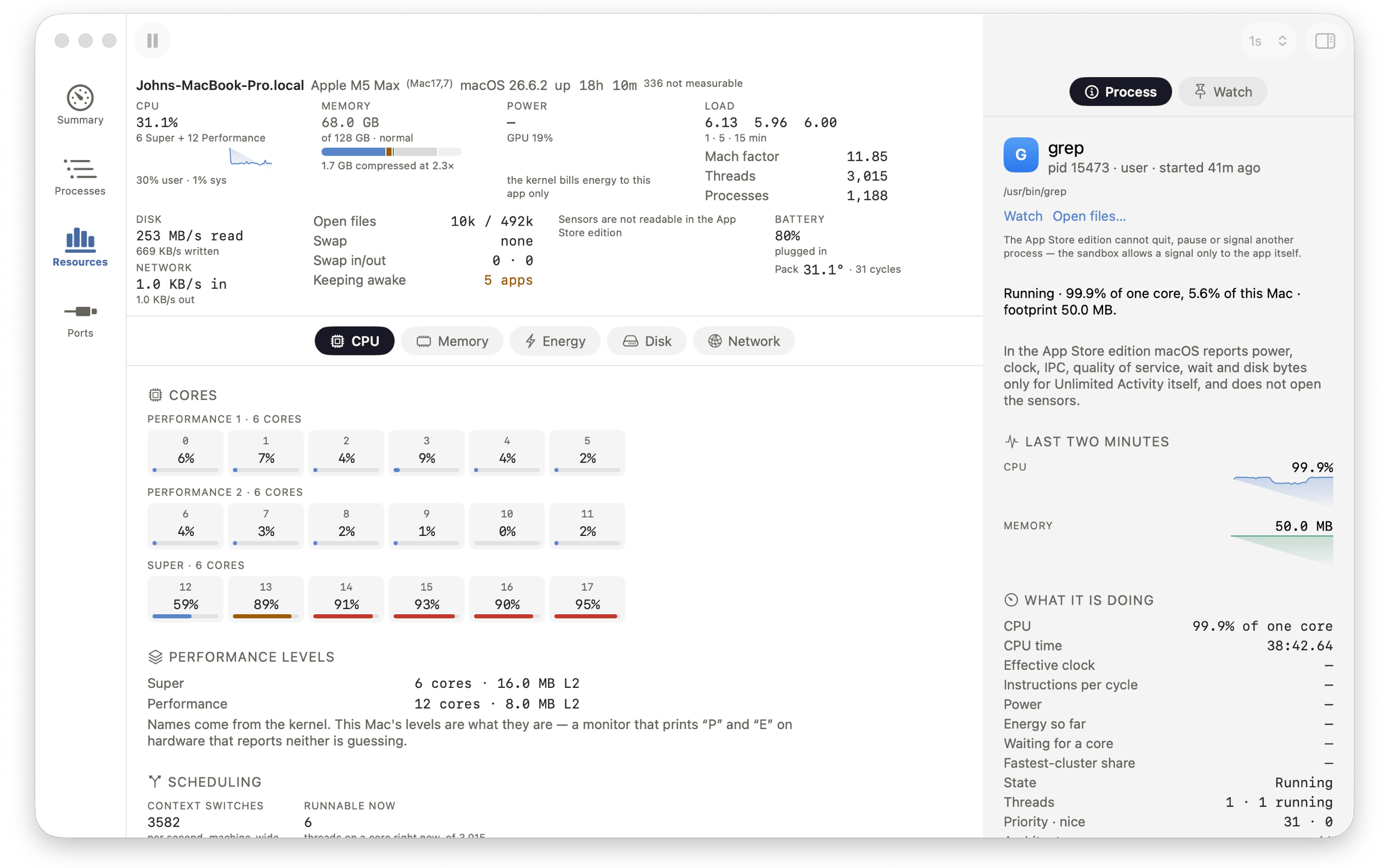
- Processor use, one tile per core, grouped the way the chip is built.
- Memory, with the compressor, swap and pressure.
- Load, network throughput, disk reads and writes, graphics use.
- Battery charge, health and cycle count.
- What is keeping the Mac awake, and who is doing it.
Why is my Mac slow?
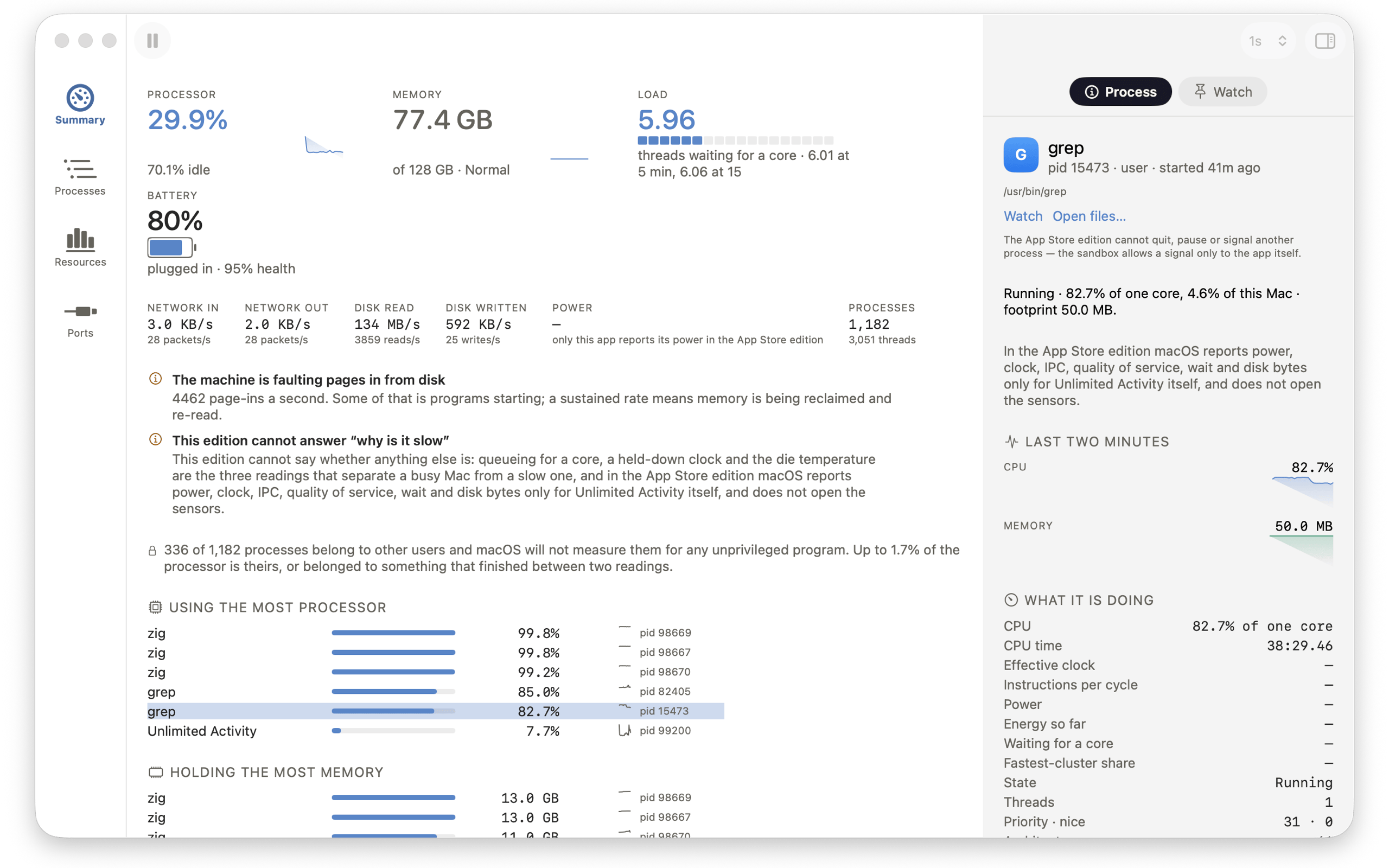
Nobody opens a process monitor to read thirty columns. They open it because something feels wrong. The Summary answers in plain sentences — the processor is busy, memory is under pressure, pages are coming in from disk, something is keeping the Mac awake — and every sentence names the number it came from, so you can check it. When nothing is wrong, it says that too.
Who is my Mac talking to?
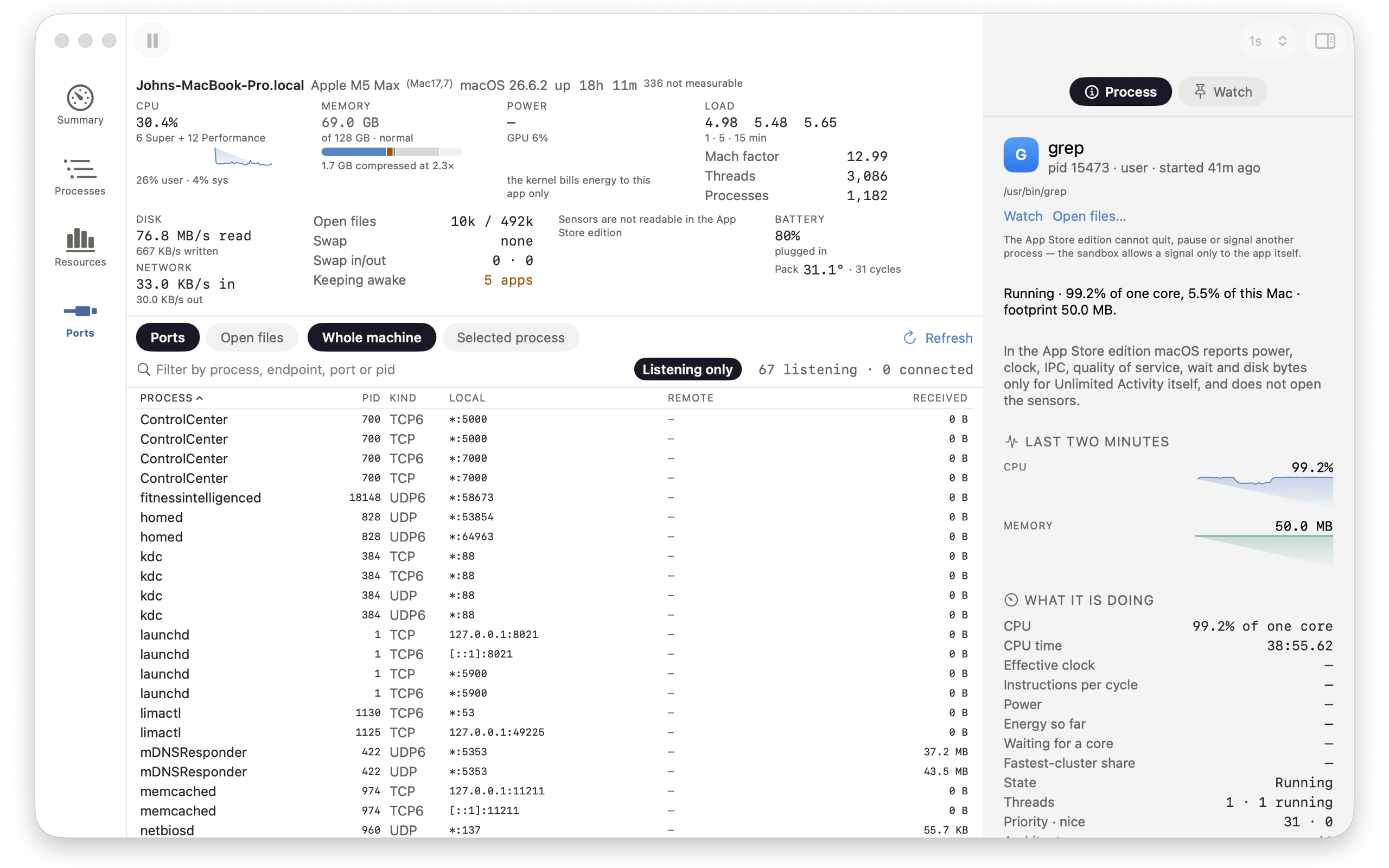
- Every connection on the machine, with both ends, its state, and the process that owns it.
- How much it has moved — the bytes each connection has sent and received since it opened.
- Listening only — the fastest answer to “what is on port 8080”.
- By host — the Network pane groups live connections by the address they lead to.
One process, in full
Click a row and the inspector says in a sentence what that process is doing right now, then shows everything the system will say about it: its family tree, its command line, its files and connections, and its processor and memory over the last two minutes.
Honest numbers
macOS measures only the processes that belong to you. System processes and other people’s are named but not measured, so those rows carry a small lock and a dash where a number would be. A dash always means “macOS would not say”. It never means zero.
On your Mac
- Four rooms — Summary, Processes, Resources, Ports — on ⌘1 to ⌘4.
- Your columns, their order, the sort and the interval are remembered.
- Bigger type is one keystroke. Full keyboard navigation, and a Help book.
- Light on the machine — reading the whole process table takes a few milliseconds, so the monitor stays out of the way.
One purchase
One purchase covers the Mac app.
No account, no subscription, no in-app purchases, no ads, no analytics, and no tracking. Everything the app shows was read from the Mac it is running on.